0

How does it work?


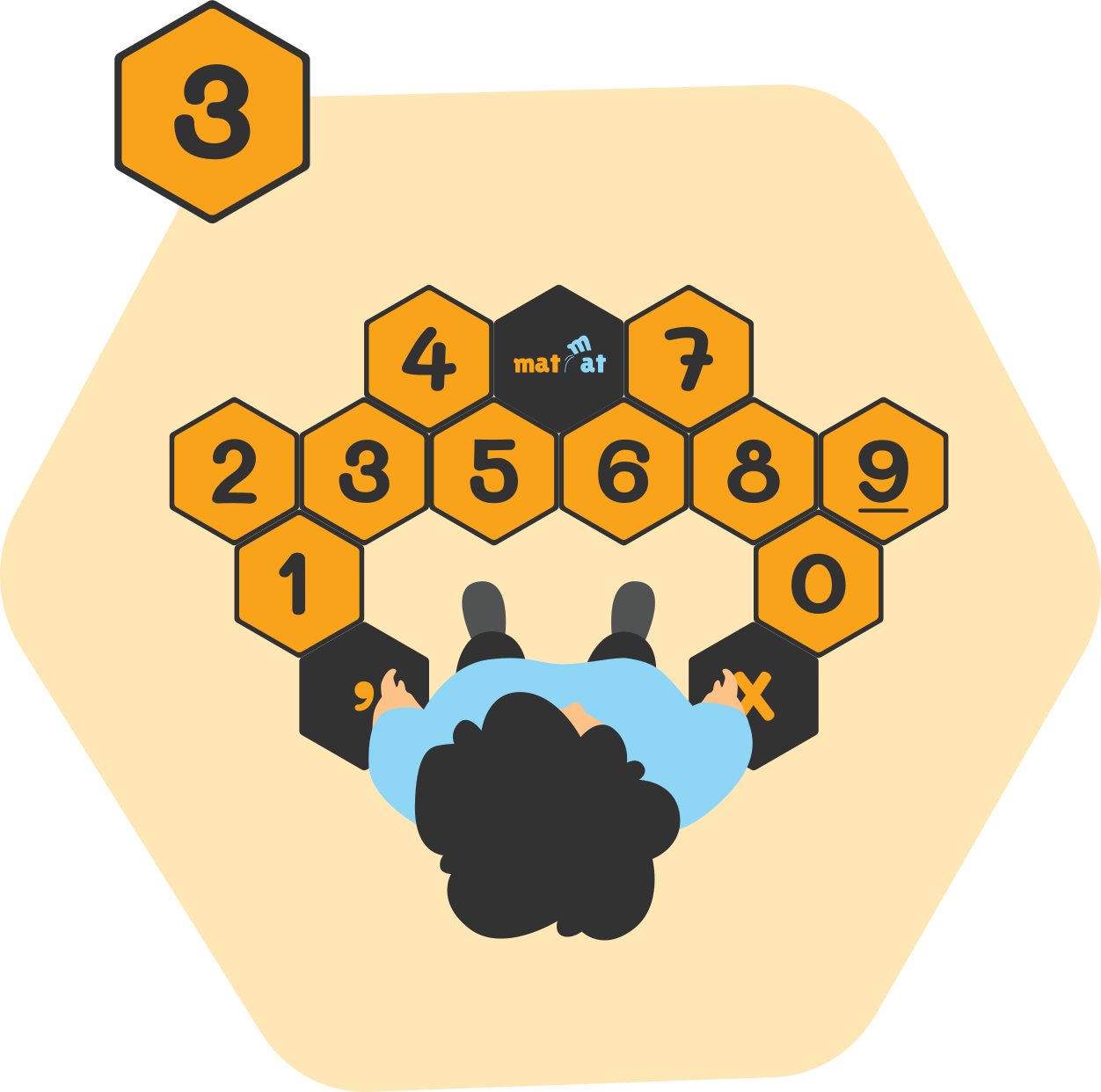
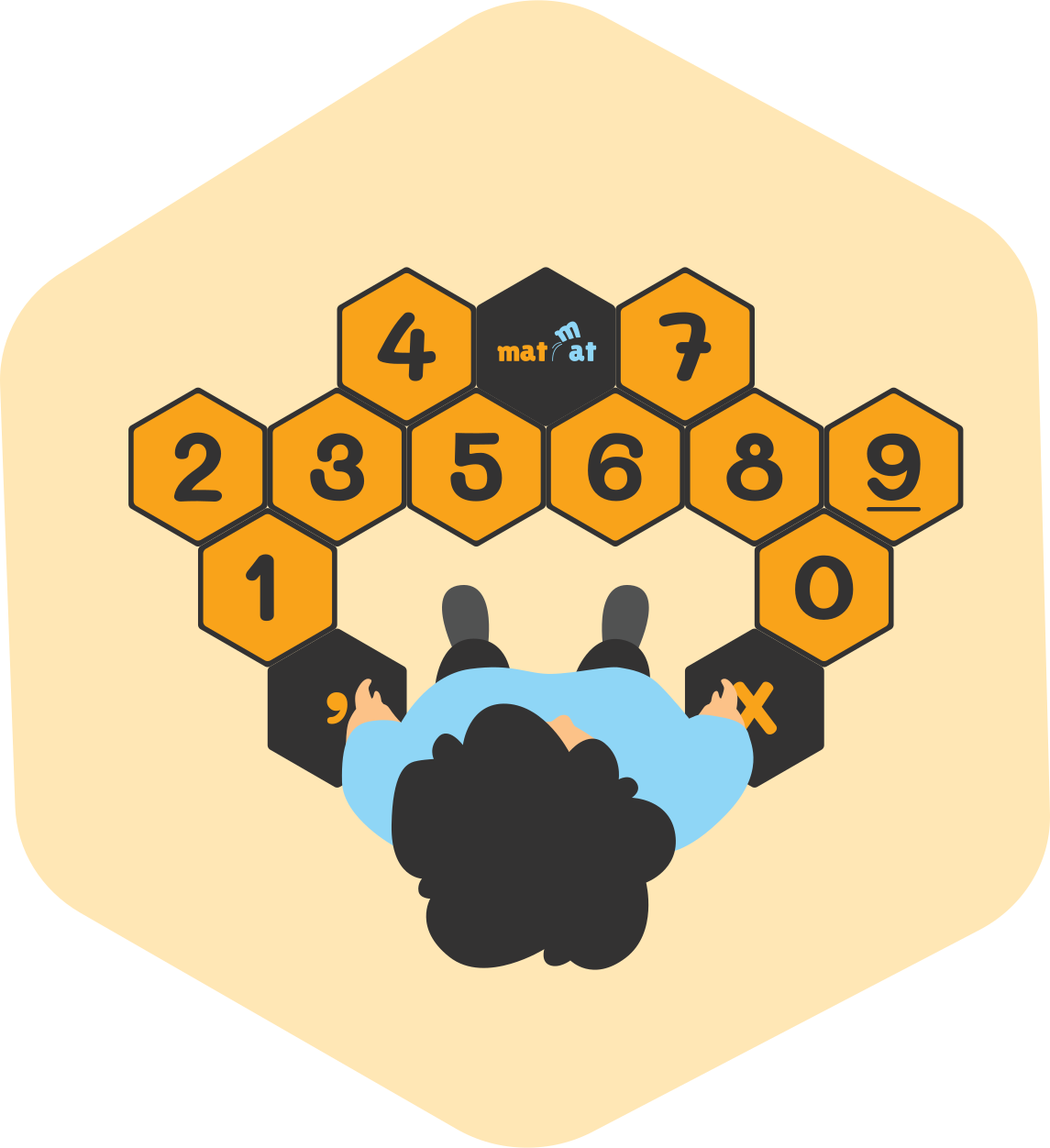
The MatMat number mat consists of 13 connectable smart tiles that kids can easily arrange in different layouts, thanks to built-in magnets.

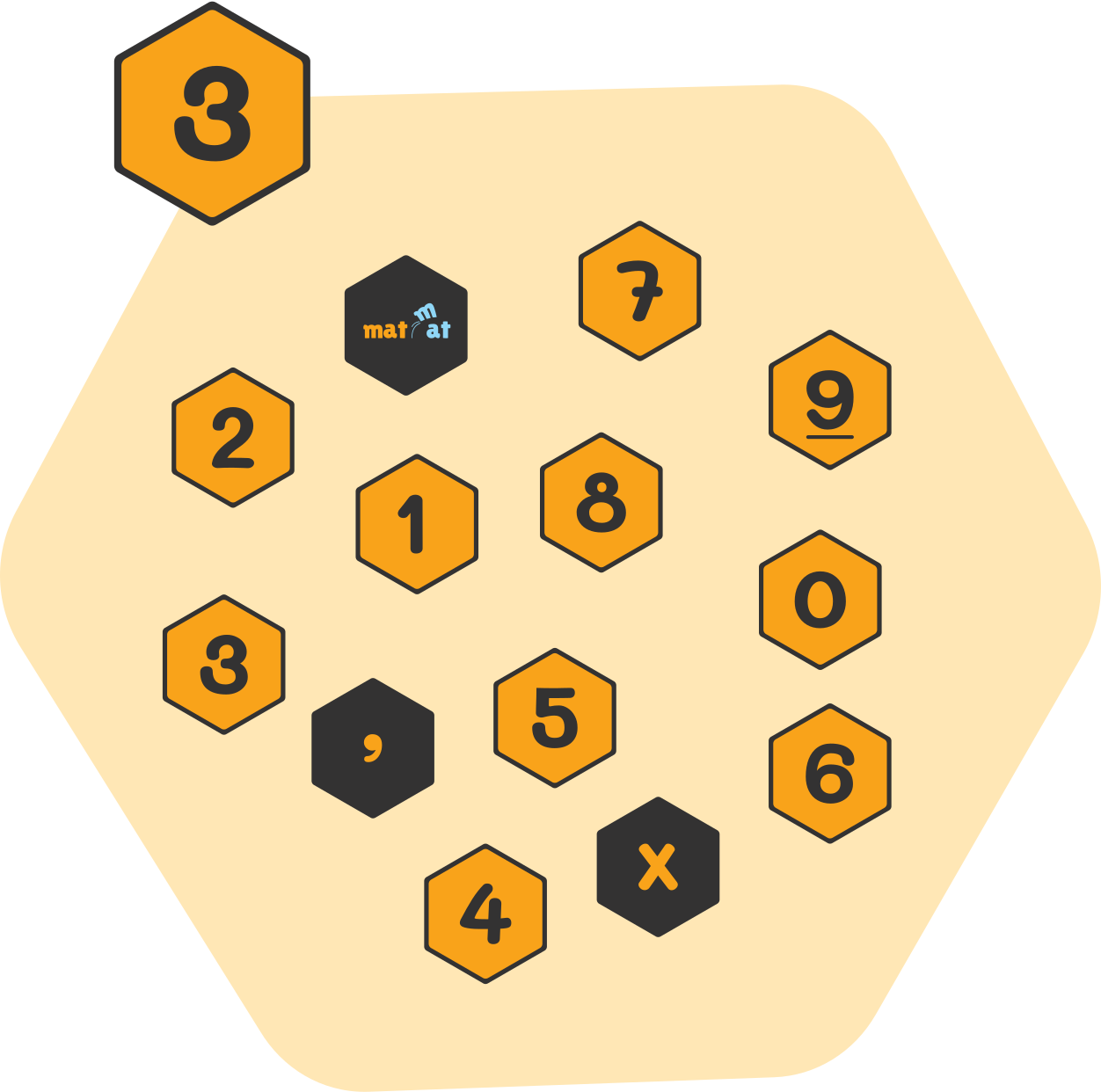
Each tile contains precise sensors that detect touch on specific symbols – numbers, decimal point, delete, and confirm.

When a child jumps or steps on a tile, a signal is sent to the app, which immediately responds with the next task.

This smart interaction makes learning lively, active, and exciting – math becomes an active adventure.
savieno sunas matmat

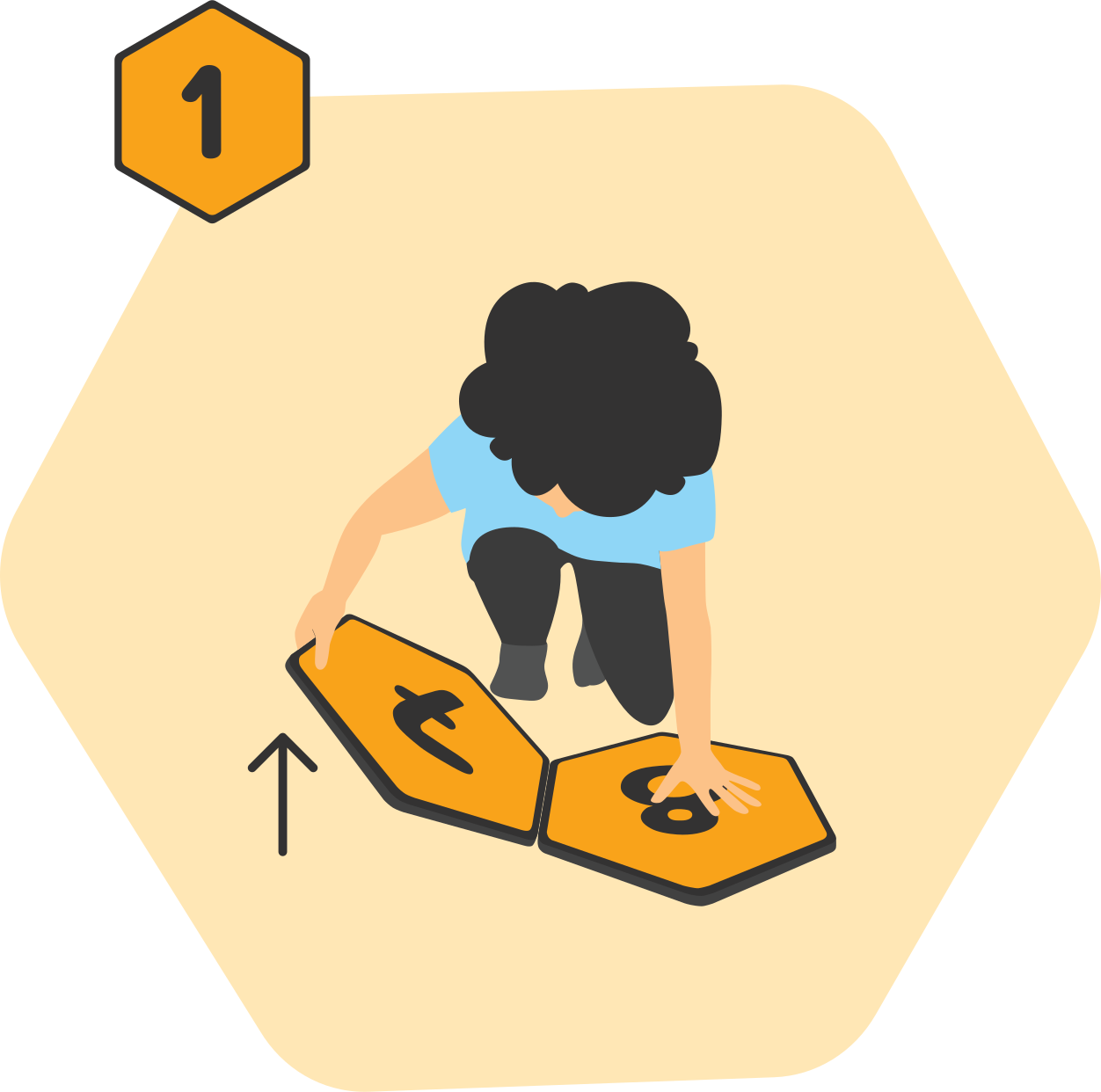
Connect the tiles


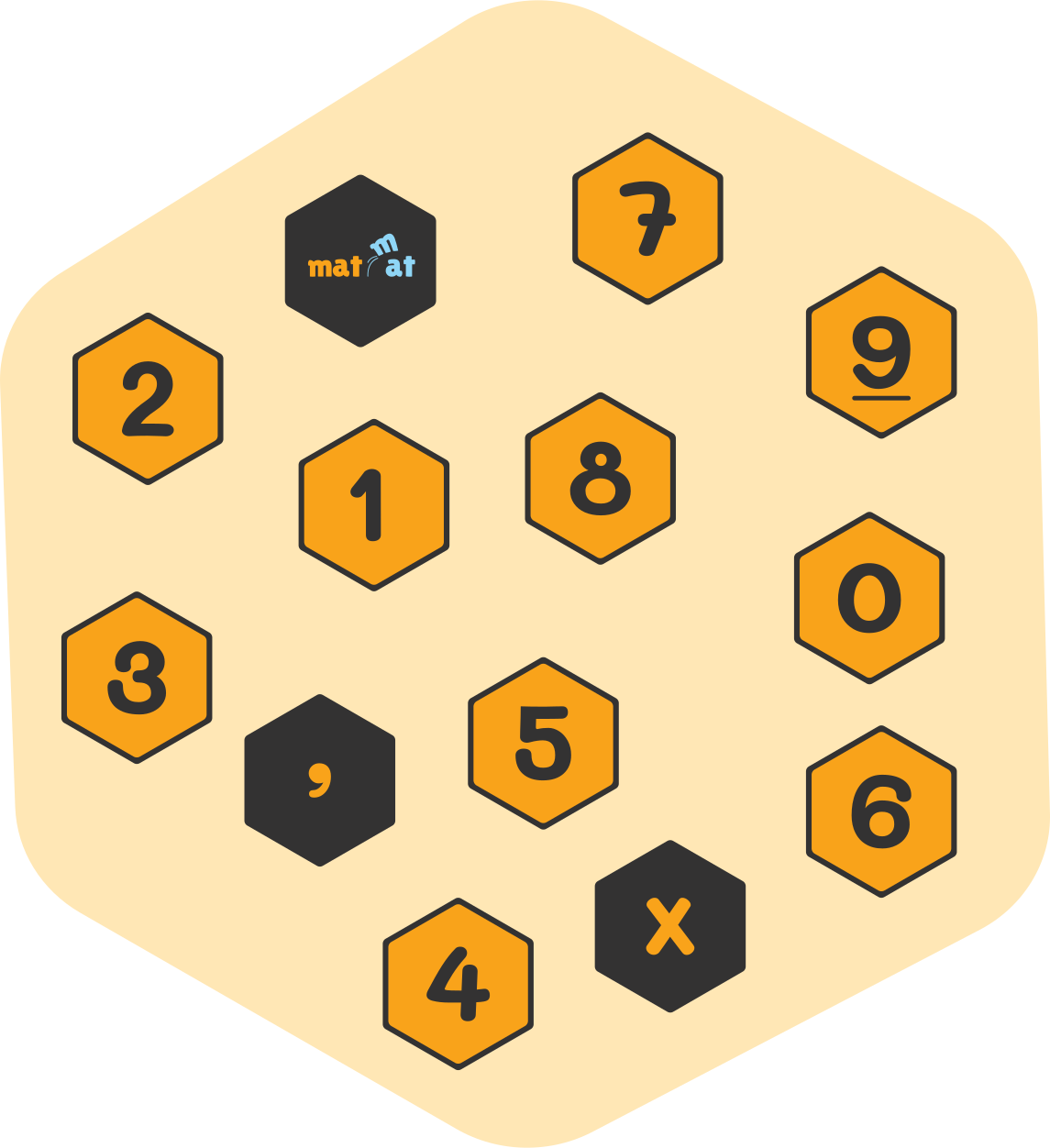
Place the smart sensor tiles on the floor in a number layout that works best for you – they easily snap together with magnets.

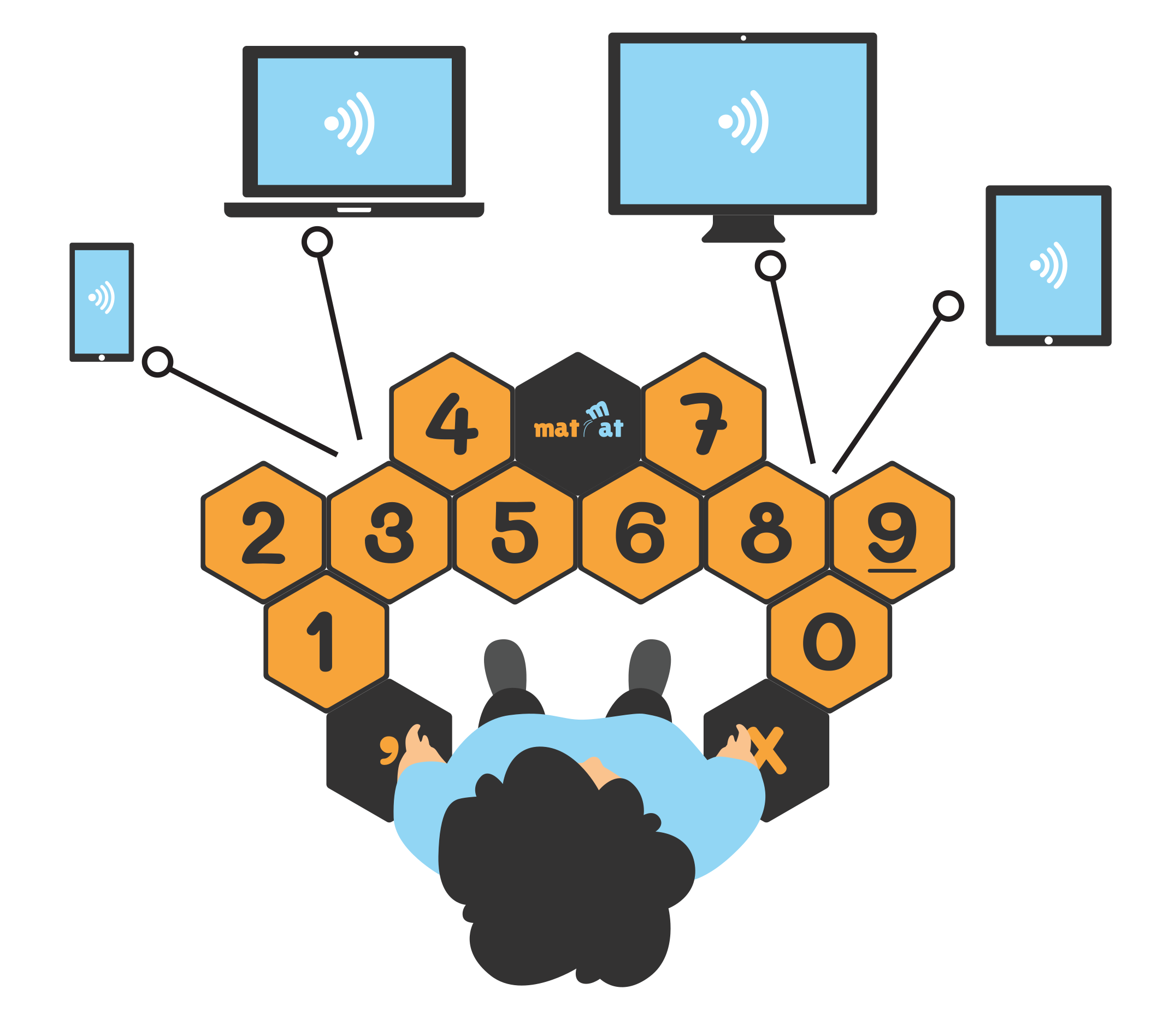
When you’re ready, connect the tiles to the app via Bluetooth, and the adventure can begin!

izvelies savu sabiedroto matmat

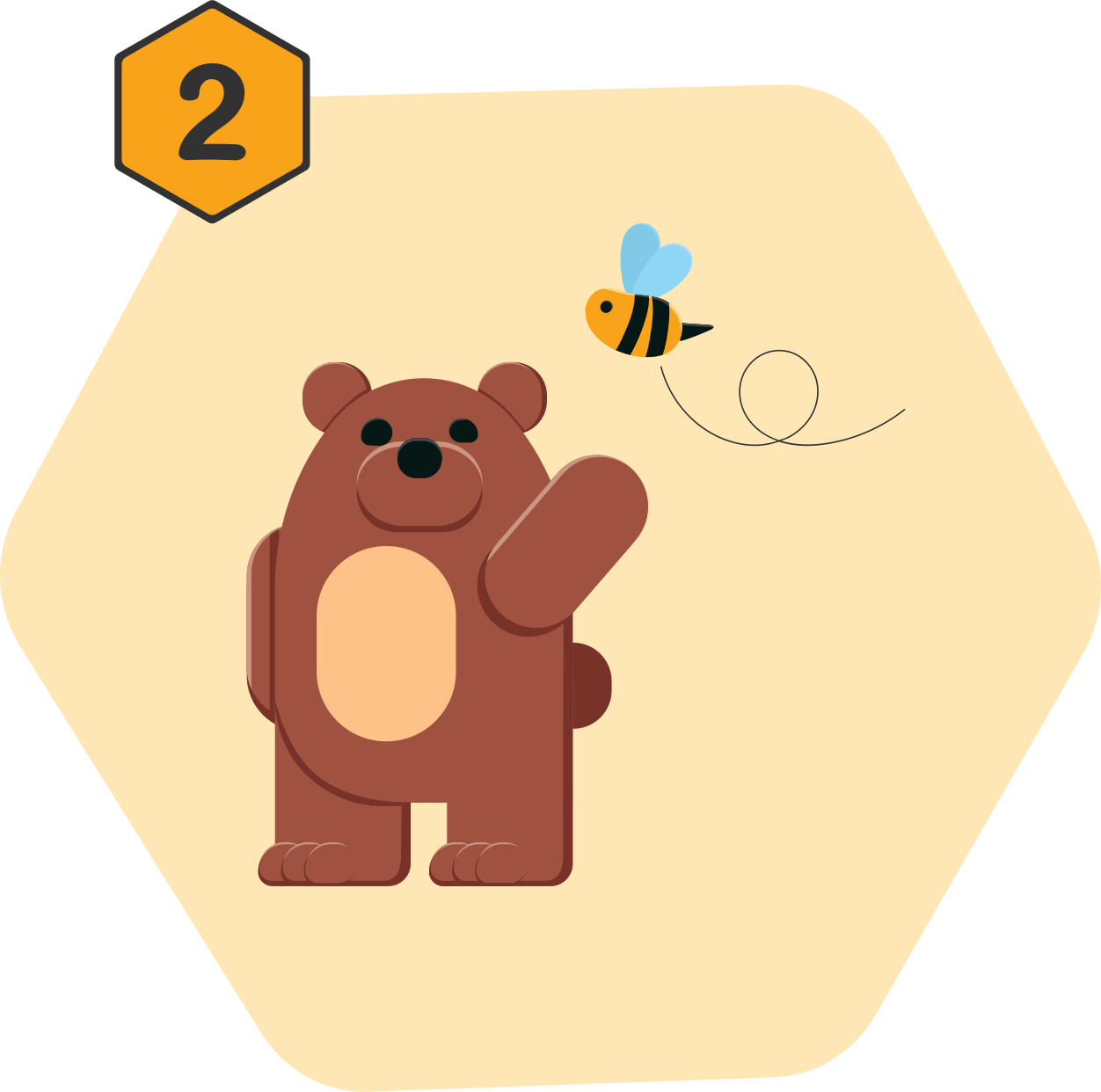
Choose your companion


Before starting your math adventure, pick a friend who best matches your learning style!

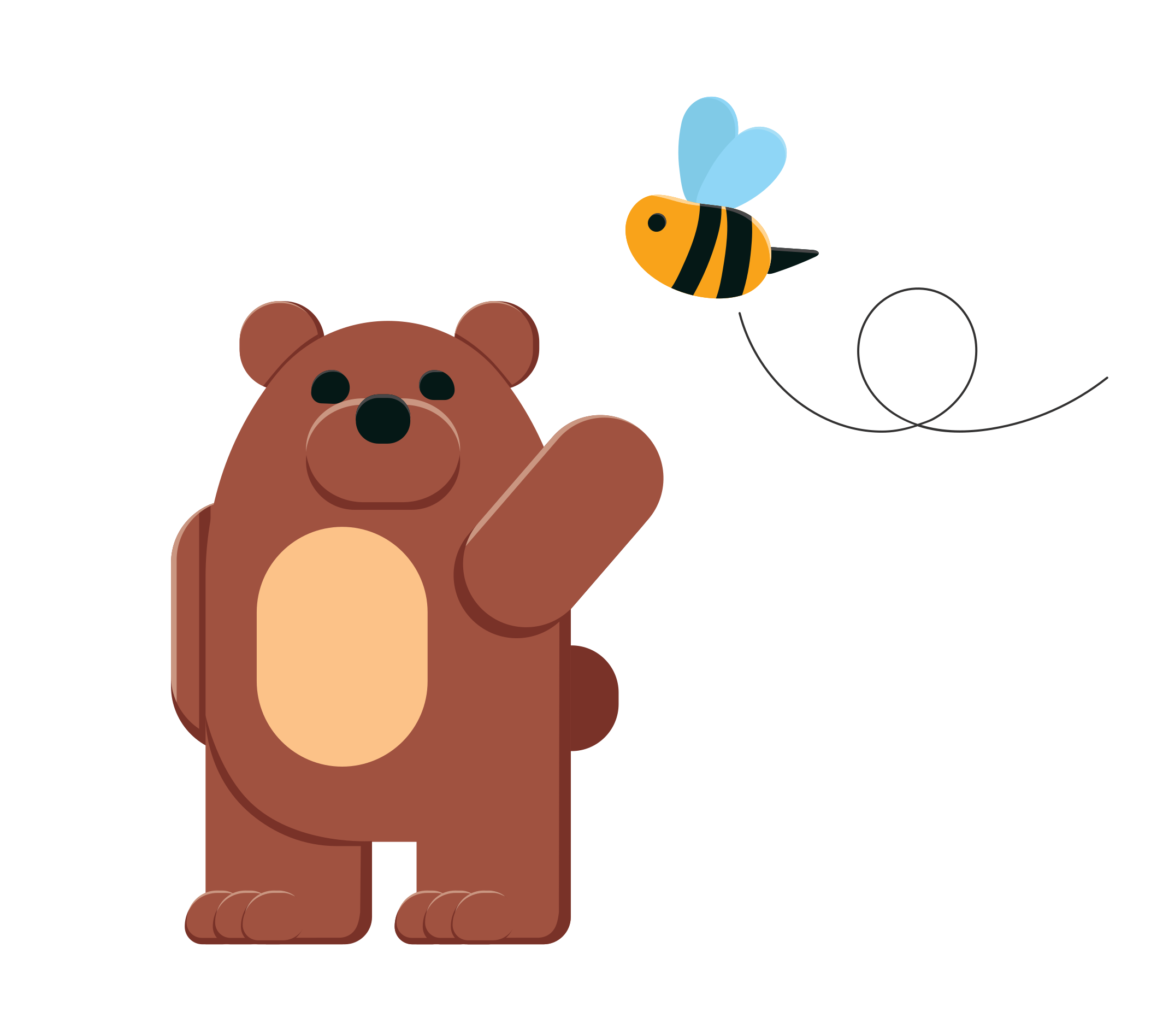
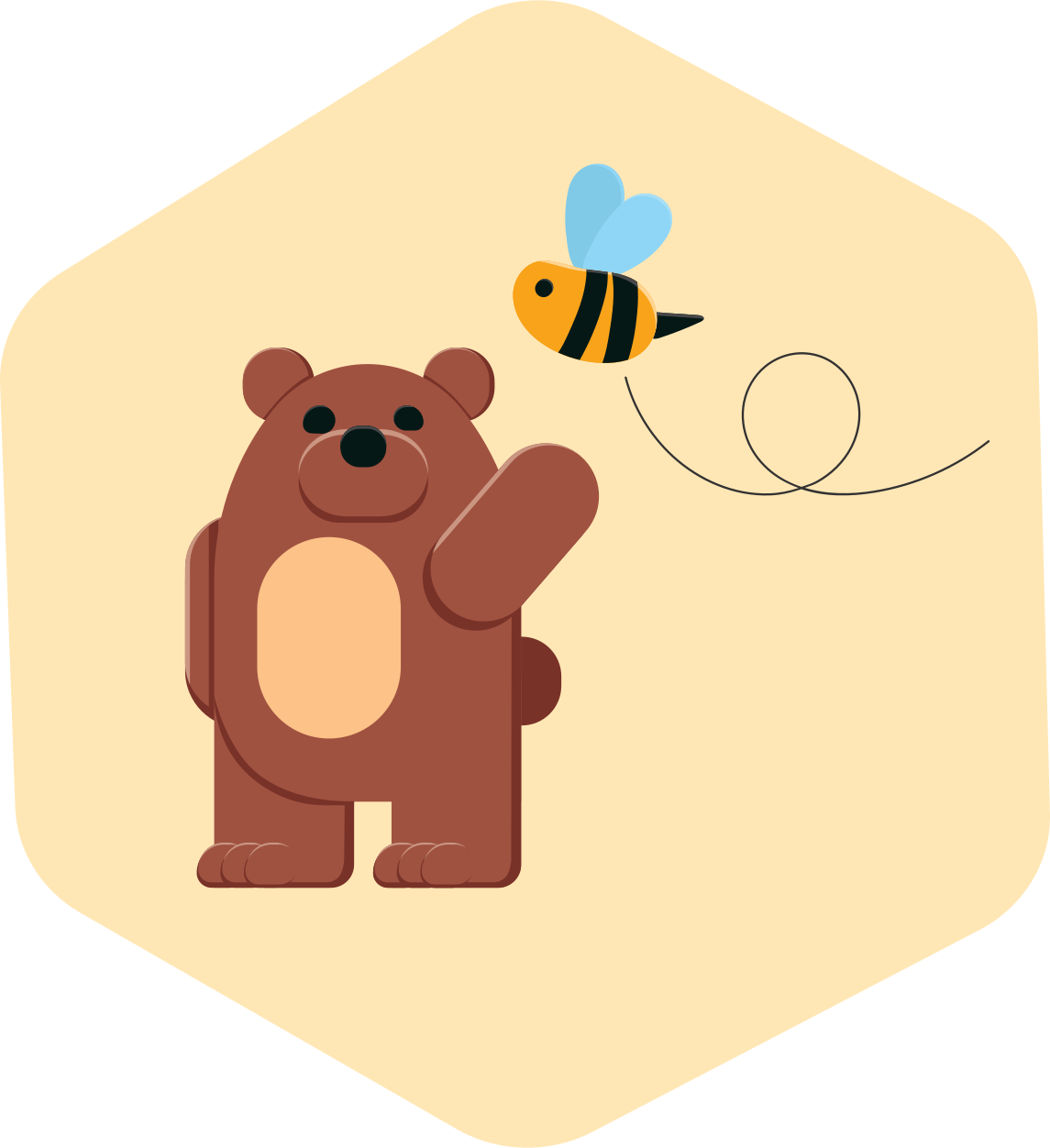
The Busy Bee will help you practice mental math competitively, turning each task into an exciting challenge.

The Brave Bear, on the other hand, will stay by your side if you prefer to learn at a calm, comfortable pace – no rush, just confidence.

Lec un rekini matmat

Jump and Calculate


Check the task on the app, solve it, and jump onto the correct numbers on your mat!

Each jump is a step forward into the world of mental math, where learning occurs through movement and joyful play.

How to connect the smart cells?

Connecting the smart cells is easy – just like putting together a puzzle!

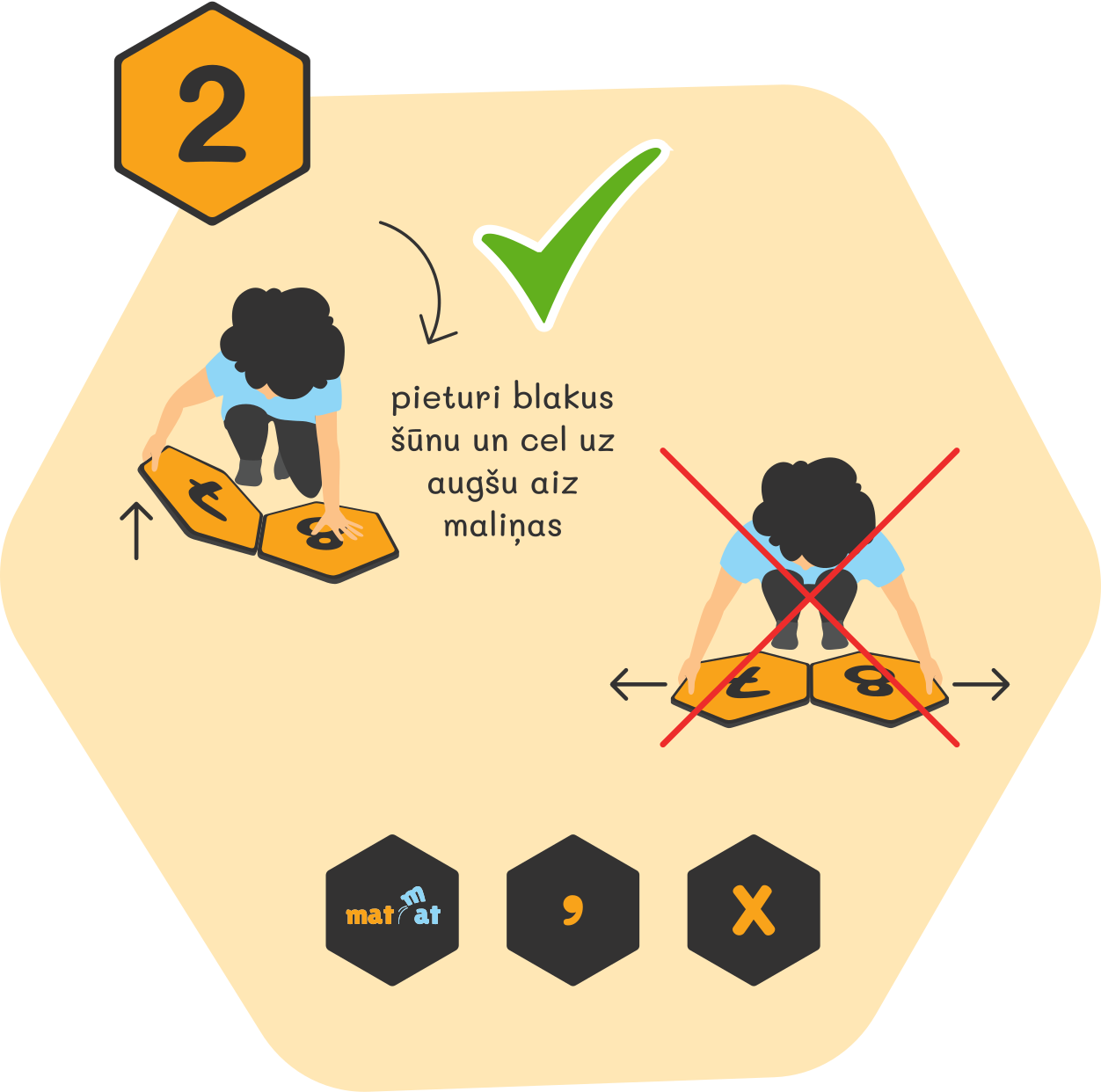
Place each smart cell on the floor in any order you prefer. Built-in magnets allow the cells to securely attach to each other, forming a stable number mat.

Once your layout is ready:

  • Turn on the main MatMat cell;
  • Open the MatMat app on your computer, tablet, or phone;
  • Connect via Bluetooth – the app will automatically recognize and link the cells;
  • Then – start jumping and calculating!

No complicated setup is needed – everything is designed so that children can get started right away.

Every move holds a new learning opportunity!

savienojums

How to Connect the Mat to a Computer or Smart Device

MatMat smart cells are designed for quick and easy connection to a computer or smart device via Bluetooth or a USB adapter (if needed).

Here’s a step-by-step guide:

  1. Connect the smart cells using the built-in magnets;
  2. Plug the main MatMat cell into a power source or smart device – make sure it’s turned on (the indicator light will turn on);
  3. On your computer or smart device, open Bluetooth settings and search for a device named “MatMat”;
  4. Connect the device – simply click “Connect”;
  5. Open the MatMat web version or app;
  6. After successfully connecting, the cells are ready to use – start solving tasks, calculating, and jumping!

Alternative option: If your computer doesn’t support Bluetooth, you can use a USB-Bluetooth adapter, which is provided with the MatMat kit.

How to choose your learning companion?

Every adventure in the MatMat world begins with choosing a companion!

At the start of the game, children can select one of two special avatars to join them on their mathematics journey:

Brave Bear – a calm and patient friend who helps children practice mental math at their own pace, giving them time to think and build confidence;

Busy Bee – a quick, active, and competition-minded companion who motivates children to solve tasks at a dynamic pace, developing fast reactions and mental agility.

Choosing an avatar not only personalizes the experience but also allows children to learn in a way that suits their personality and needs – with joy, movement, and inspiration!

izvelies sabiedroto

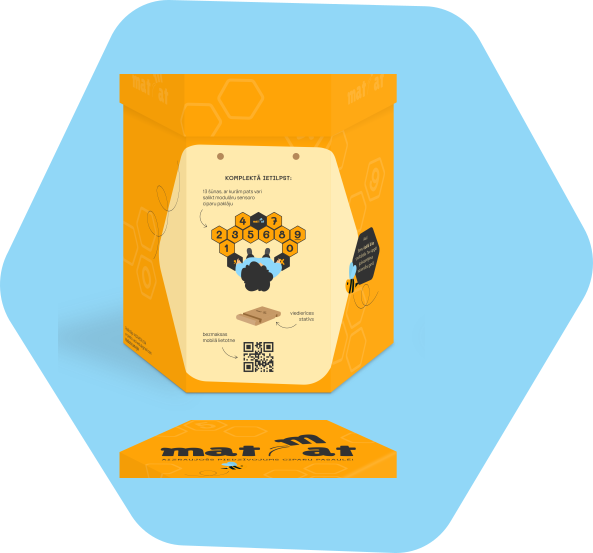
What’s in the box?

kas ieksa kaste - viedierices

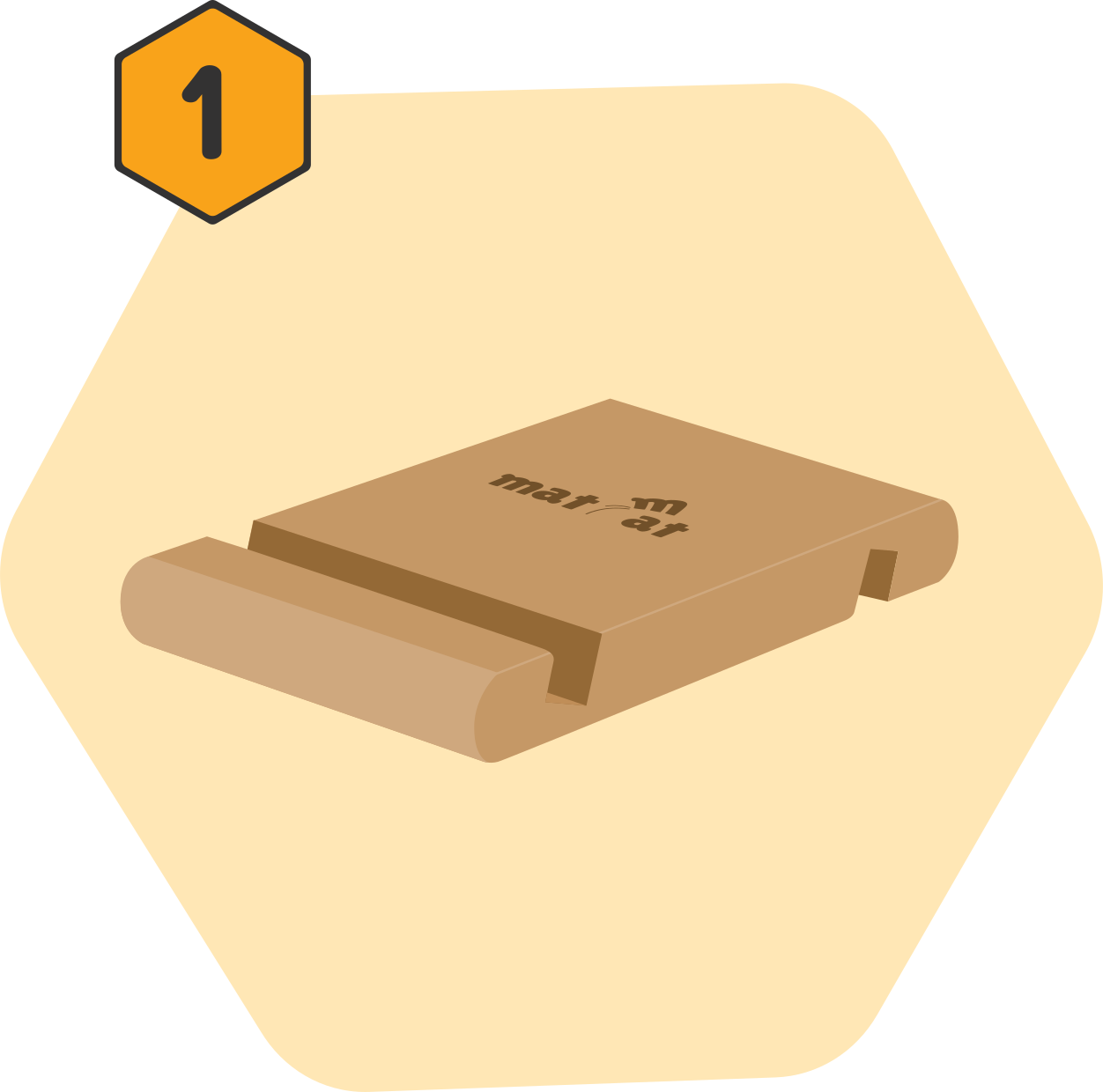
Smart device stand

kas ieksa kaste - 13sunas

Modular smart sensor cells

b1
b2
Group 12 (1)
b3
b4
Available soon
kas ieksa kaste - instrukcija

Instructions

kas ieksa kaste - lietotne

Free mobile app

macisanas caur kustibu

Learning through movmen

Sensoru sunas

Modular smart sensor cells

Lietotne ikona

An app with customized tasks

izvelies sabiedroto ikona

Choosing a learning companion (Bear or Bee)

realais laiks

Real-time feedback